> ## Documentation Index
> Fetch the complete documentation index at: https://docs.tranthor.com/llms.txt
> Use this file to discover all available pages before exploring further.
# Entry - Journey Node
> Define who is allowed to enter a Journey, and when they enter it.
All journeys have an entry node. An entry node defines who is allowed to enter the journey, and when they enter it.
There are two types of journey entry nodes, Segment Entry Nodes and Event Entry Nodes. Users enter journeys with Segment Entry Nodes when they enter the specified segment. Users enter journeys with Event Entry Nodes immediately, when they trigger the specified event.
## Segment Entry
Users enter journeys with Segment Entry Nodes when they enter the specified segment. Segment Entry Nodes are useful for what might traditionally considered marketing messaging. Example use cases include drip campaigns, onboarding, or re-engagement campaigns.
Journeys with Segment Entry Nodes have at most one running instance per user. Note that a user can only re-enter a segment entry journey if:
1. The user exits the journey.
2. The user exits the segment.
3. The user re-enters the segment.
4. The journey is configured to allow re-entry.
### Example Use Case - Welcome email
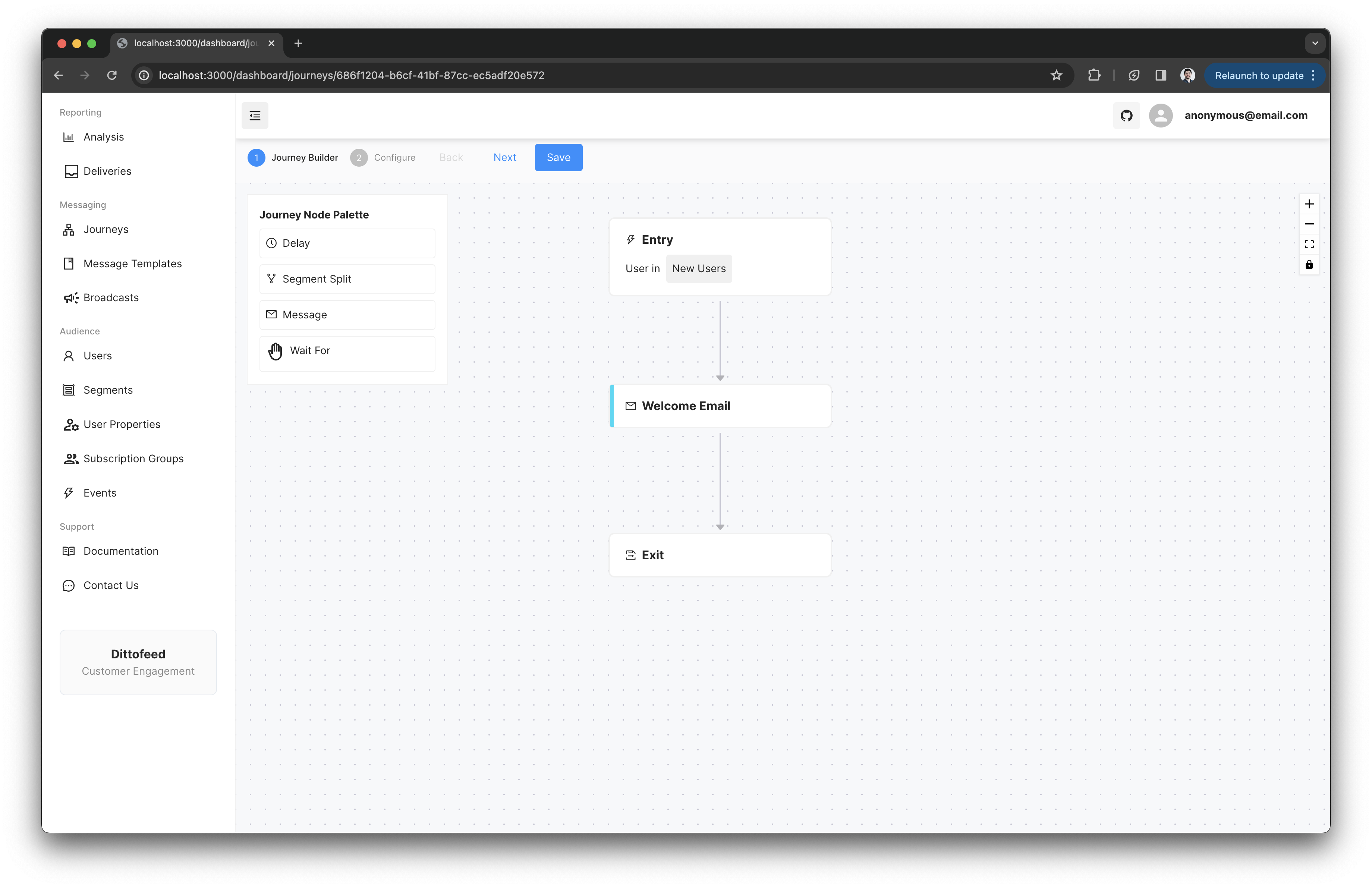 For example, an entry node might be assigned a "New Users" segment as described [here](/resources/segment-nodes/trait#example-use-case-new-users), which includes all users who have a `createdAt` date within the last 30 minutes. This journey might encourage users to finishing setting up their prorfile, and inform them about new features.
## Event Entry
Users enter journeys with Event Entry Nodes immediately when they send a `TRACK` event with the specified name. Event Entry Nodes are useful for what might traditionally considered transactional messaging. For example, journeys with Event Entry Nodes are appropriate for sending order confirmation, password reset, or order cancellation emails.
With every matching event, a new instance of the journey is created for the user. This is in contrast to Segment Entry Nodes, where only one instance of the journey can exist at any given time for each user.
### Example Use Case - Order Cancellation
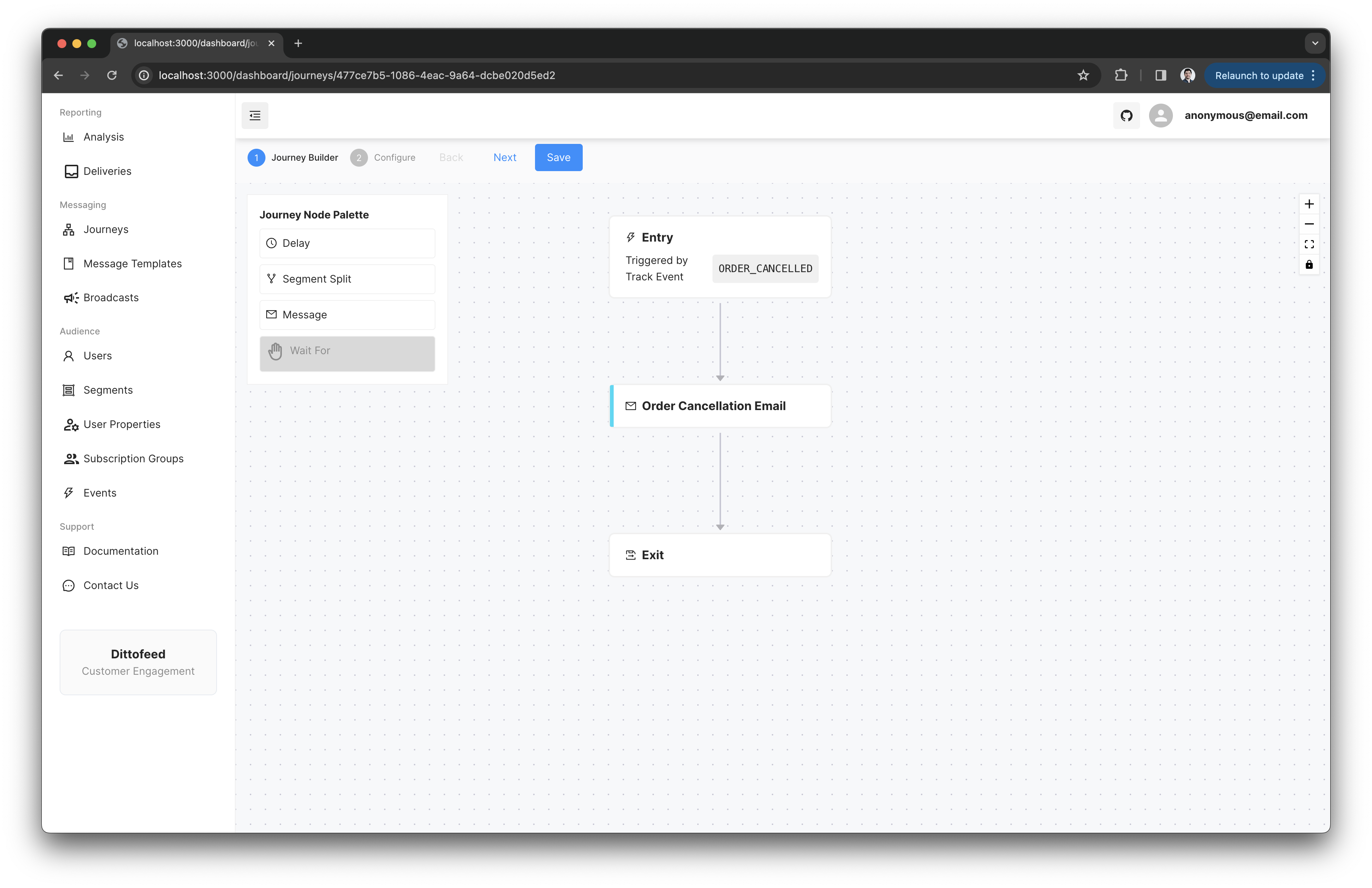
For example, one might trigger a journey with `ORDER_CANCELLED` events. This journey might include a message node that sends an email to the user, informing them that their order has been cancelled.
A user can have multiple instances of the journey running at the same time, if they trigger multiple `ORDER_CANCELLED` events concurrently.
For example, an entry node might be assigned a "New Users" segment as described [here](/resources/segment-nodes/trait#example-use-case-new-users), which includes all users who have a `createdAt` date within the last 30 minutes. This journey might encourage users to finishing setting up their prorfile, and inform them about new features.
## Event Entry
Users enter journeys with Event Entry Nodes immediately when they send a `TRACK` event with the specified name. Event Entry Nodes are useful for what might traditionally considered transactional messaging. For example, journeys with Event Entry Nodes are appropriate for sending order confirmation, password reset, or order cancellation emails.
With every matching event, a new instance of the journey is created for the user. This is in contrast to Segment Entry Nodes, where only one instance of the journey can exist at any given time for each user.
### Example Use Case - Order Cancellation
For example, one might trigger a journey with `ORDER_CANCELLED` events. This journey might include a message node that sends an email to the user, informing them that their order has been cancelled.
A user can have multiple instances of the journey running at the same time, if they trigger multiple `ORDER_CANCELLED` events concurrently.
 ### Choosing a Key
When using an event to trigger a journey with an Event Entry Node, you must choose a key to identify the journey instance. The key can be chosen from an event property, or from the message id of the triggering event. Given two events with the same key, the user will only enter the journey once.
Common use cases for Event Entry journeys include:
* sending messages reminding users about an upcoming appointment i.e. choose an `appointmentId` as the key.
* sending messages confirming an order i.e. choose an `orderId` as the key.
#### From an Event Property
The key can be chosen from an event properties e.g. `appointmentId` in the case of appointment reminders.
For example, the following appointment confirmation event could be used to trigger a journey:
```json theme={null}
{
"event": "APPOINTMENT_CONFIRMED",
"type": "track",
"properties": {
"appointmentId": "123",
"appointmentTime": "2024-01-01T12:00:00Z"
...
},
...
}
```
Using a property as the key has the advantage that it allows you to route multiple events to the same event triggered journey, in combination with a [Keyed Performed User Property](/resources/user-property-types/keyed-performed) or [Keyed Performed Segment](/resources/segment-nodes/keyed-performed).
For example, you might anticipate an `APPOINTMENT_CANCELLED` event with the same `appointmentId`, and want to route both events to the same journey instance.
#### From the Message Id
By default, the message id of the triggering event is used as the key.
In most cases, events' message id's can safely be assigned an arbitrary unique value, like a UUID. However, when sending events that are used to trigger Event Entry Nodes and using the message id as the key, one should ideally assign a message id that identifies the corresponding operation in the context of your application - like an `orderId` or `appointmentId`.
#### Example Journey - Appointment Reminders
To see an example of how to set up an appointment reminder Event Entry journey, see the [Appointment Reminders](/guide/sample-journeys/appointment-reminders) guide.
### Performed User Properties
[User properties](/resources/user-properties) are usually calculated "asynchronously", meaning user properties are calculated some time after when an event is submitted.
However, an exception is made in the case of journeys with Event Entry Nodes. When a user enters a journey with an Event Entry Node, ["Performed User Properties"](/resources/user-property-types/performed) are calculated immediately, and made available within the journey and its message nodes.
### Limitations
Currently, journeys with Event Entry Nodes can not contain ["Wait-For" journey nodes](/resources/journey-nodes/wait-for).
### Choosing a Key
When using an event to trigger a journey with an Event Entry Node, you must choose a key to identify the journey instance. The key can be chosen from an event property, or from the message id of the triggering event. Given two events with the same key, the user will only enter the journey once.
Common use cases for Event Entry journeys include:
* sending messages reminding users about an upcoming appointment i.e. choose an `appointmentId` as the key.
* sending messages confirming an order i.e. choose an `orderId` as the key.
#### From an Event Property
The key can be chosen from an event properties e.g. `appointmentId` in the case of appointment reminders.
For example, the following appointment confirmation event could be used to trigger a journey:
```json theme={null}
{
"event": "APPOINTMENT_CONFIRMED",
"type": "track",
"properties": {
"appointmentId": "123",
"appointmentTime": "2024-01-01T12:00:00Z"
...
},
...
}
```
Using a property as the key has the advantage that it allows you to route multiple events to the same event triggered journey, in combination with a [Keyed Performed User Property](/resources/user-property-types/keyed-performed) or [Keyed Performed Segment](/resources/segment-nodes/keyed-performed).
For example, you might anticipate an `APPOINTMENT_CANCELLED` event with the same `appointmentId`, and want to route both events to the same journey instance.
#### From the Message Id
By default, the message id of the triggering event is used as the key.
In most cases, events' message id's can safely be assigned an arbitrary unique value, like a UUID. However, when sending events that are used to trigger Event Entry Nodes and using the message id as the key, one should ideally assign a message id that identifies the corresponding operation in the context of your application - like an `orderId` or `appointmentId`.
#### Example Journey - Appointment Reminders
To see an example of how to set up an appointment reminder Event Entry journey, see the [Appointment Reminders](/guide/sample-journeys/appointment-reminders) guide.
### Performed User Properties
[User properties](/resources/user-properties) are usually calculated "asynchronously", meaning user properties are calculated some time after when an event is submitted.
However, an exception is made in the case of journeys with Event Entry Nodes. When a user enters a journey with an Event Entry Node, ["Performed User Properties"](/resources/user-property-types/performed) are calculated immediately, and made available within the journey and its message nodes.
### Limitations
Currently, journeys with Event Entry Nodes can not contain ["Wait-For" journey nodes](/resources/journey-nodes/wait-for).